
Run a local model on your own mail
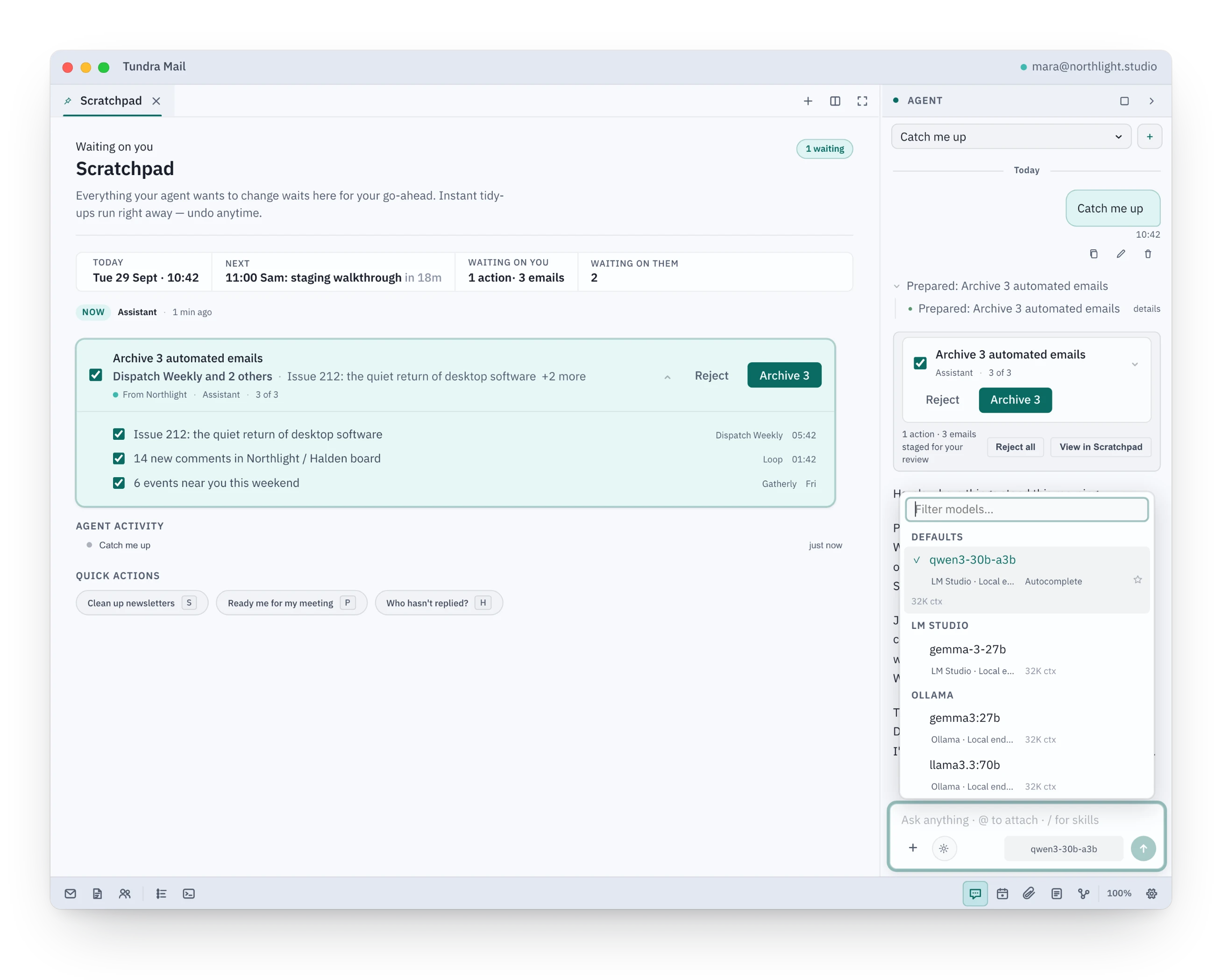
Point Tundra at LM Studio or Ollama and assign it per job. The agent proposes changes as cards. Sending an email always needs your OK.
See it here
A browser preview on sample data.
How it works
- Open Settings → Models and choose Add provider → LM Studio (local) or Ollama (local).
- If the model runs on another machine on your network, change the address to that machine, for example http://192.168.1.20:11434/v1.
- Press Test connection. It shows how many models your server offers, such as ● 3 models.
- Assign a model to a job, such as Agent & chat. Each job can use a different model.
- Turn on AI features in Settings → AI & Automations. Adding a provider does not turn it on.
- Press ⌘L and ask it to catch you up. The answer cites the emails it read.
- Ask it to archive the newsletters. A card appears in the chat and in the Scratchpad; press its button to approve, or Reject.
Learn more
AI features stay off until you turn them on. With a local server the requests stay on your machine or your own network, and a cloud provider bills you directly through your own key.
The agent reads your mail freely and proposes changes as cards you review. Sending an email, marking mail read or unread from chat, and anything destructive always ask.
Good to know
- How good the answers are depends on the model you run. Larger local models need a capable machine.
- In Hands-free mode the agent stops asking before drafts, notes and reminders, and runs undoable tidy-ups at once with Undo. Sending, read and unread changes and deletions still wait for your OK.
- New Anthropic connections use the native Messages API at api.anthropic.com with your own API key. Previously saved connections keep their OpenAI-compatible mode.
- Tundra checks GitHub for updates and fetches a model price list from models.dev in the background. There is no setting for these yet; blocking them in a firewall is safe, and Tundra falls back to its built-in price list.